

Create an Endpoint
1
Open the Create Endpoint Dialog
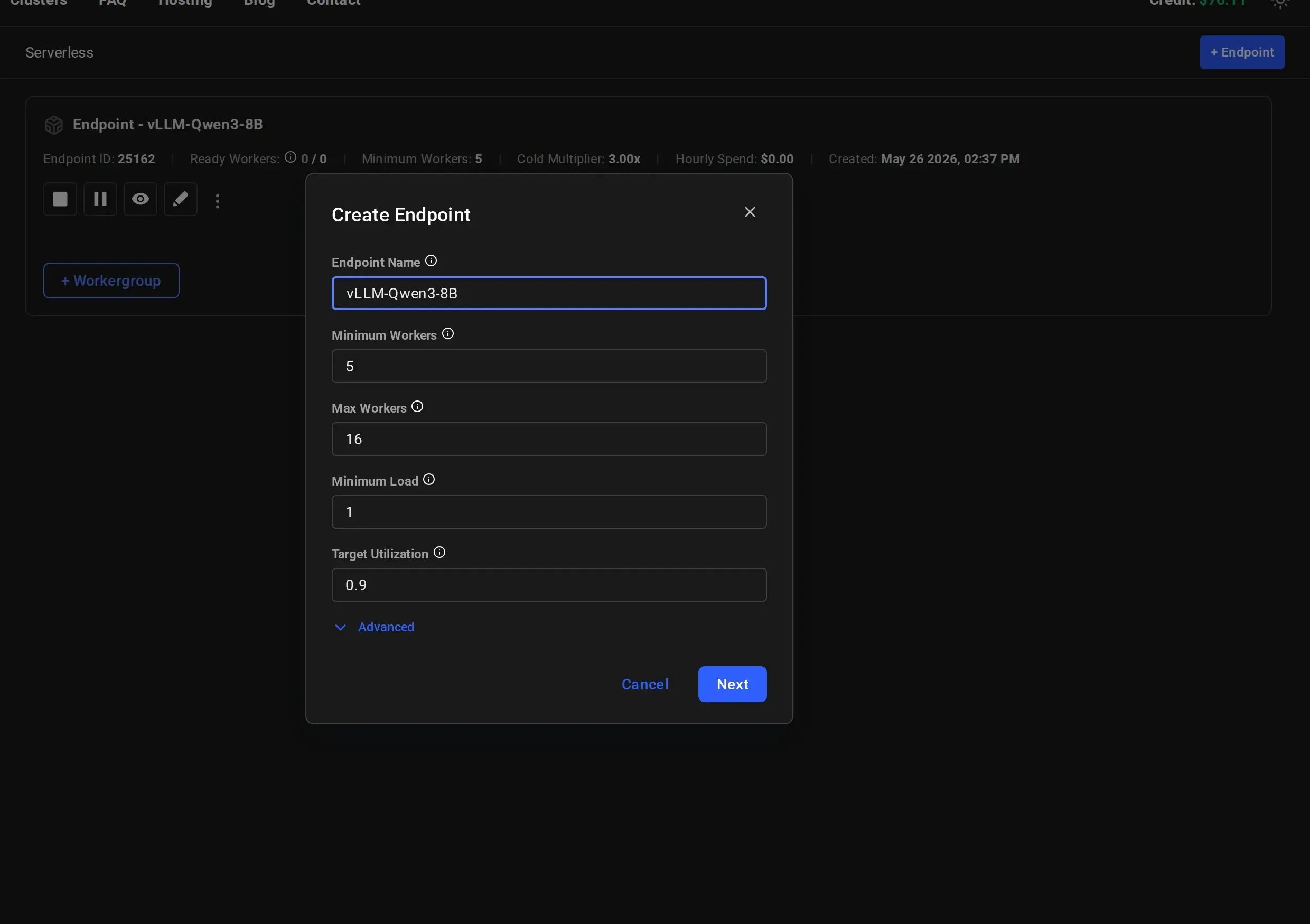
Navigate to the Serverless Dashboard. How you open the Create Endpoint dialog depends on whether you already have an endpoint: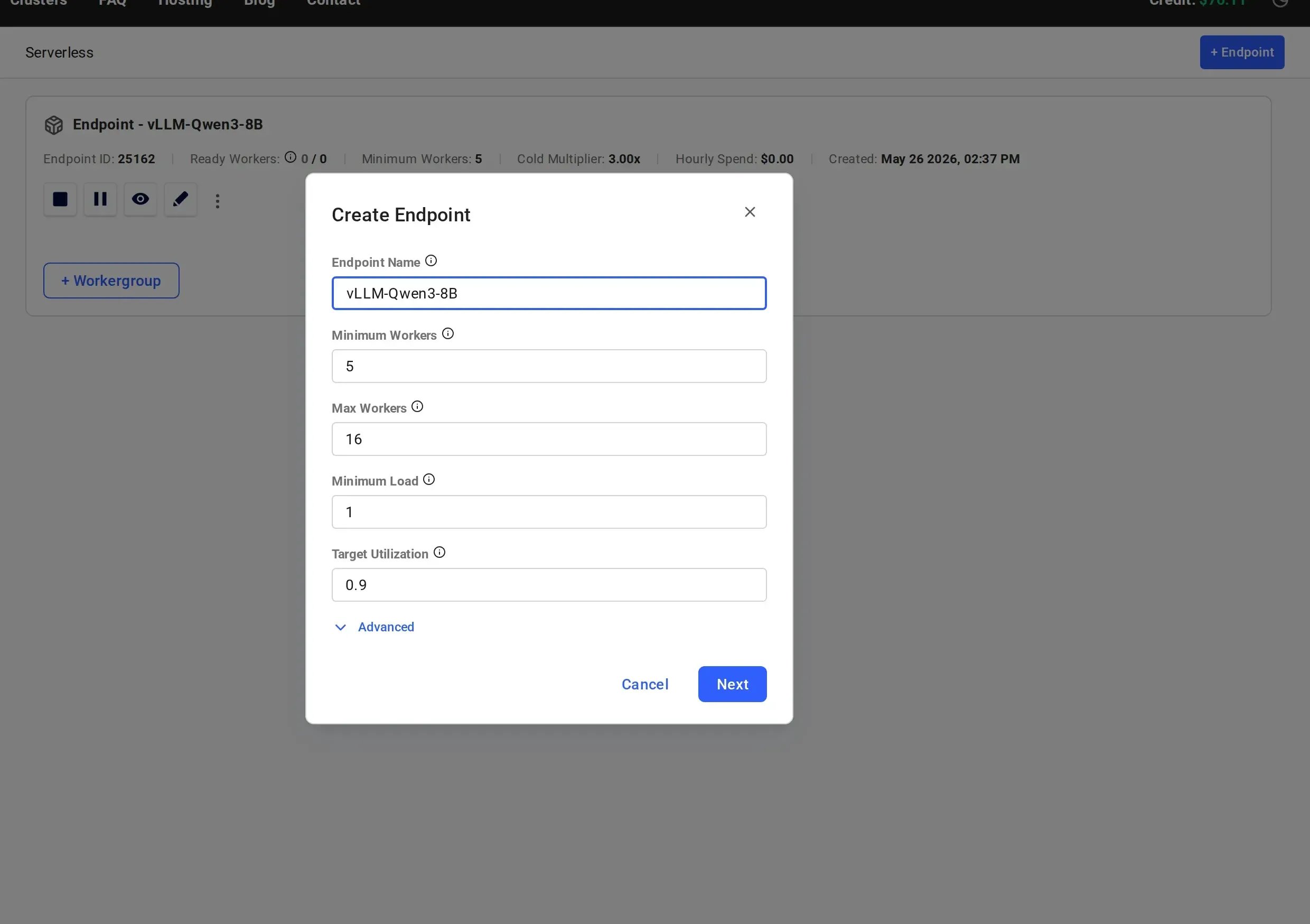
- No endpoints yet: the dashboard shows the “Get Started” quickstart modal. Click “Advanced setup” at the bottom of the modal to switch to the full configuration flow.
- Existing endpoint: click ”+ Endpoint” in the top right.
2
Configure Advanced Parameters (Optional)
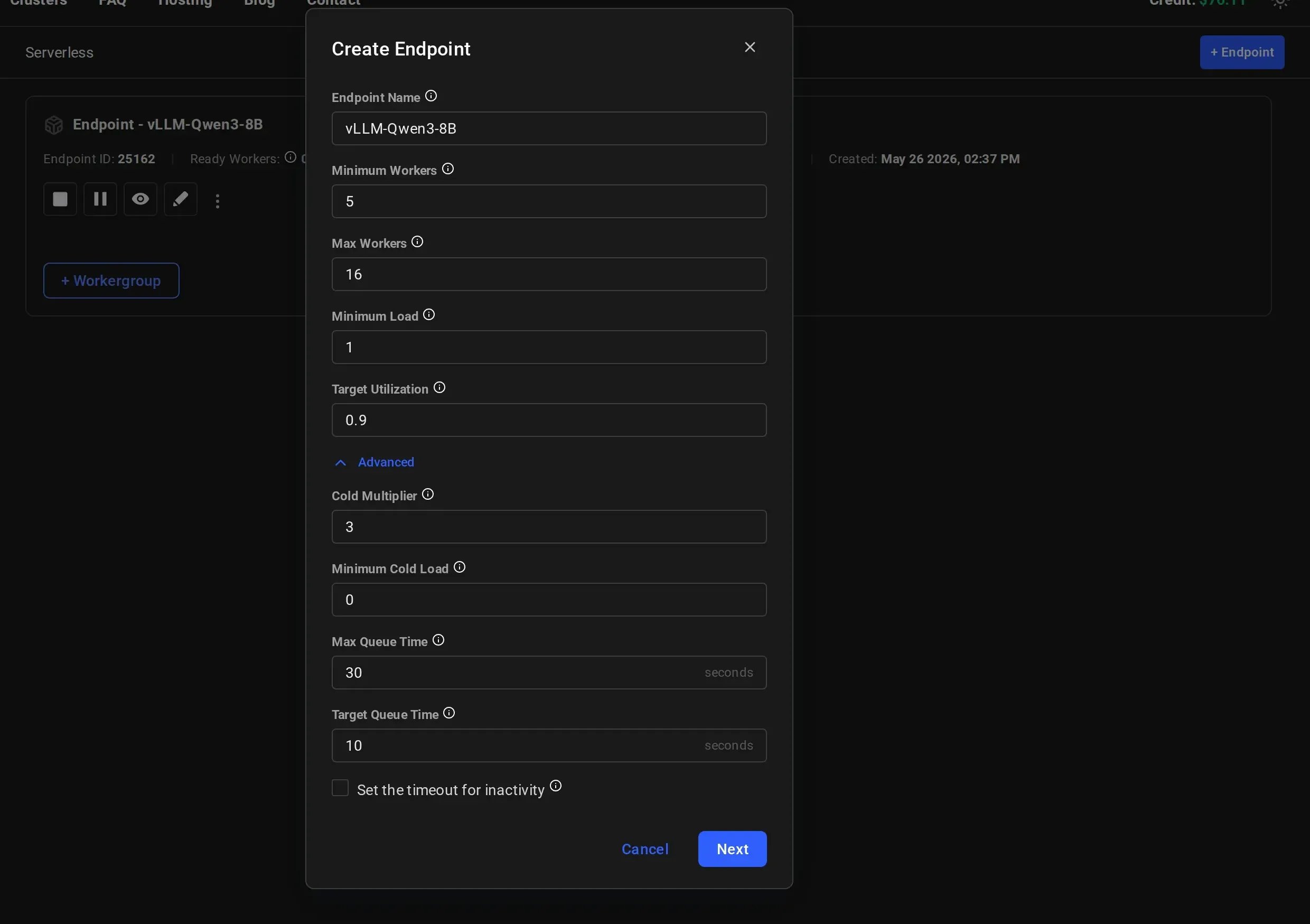
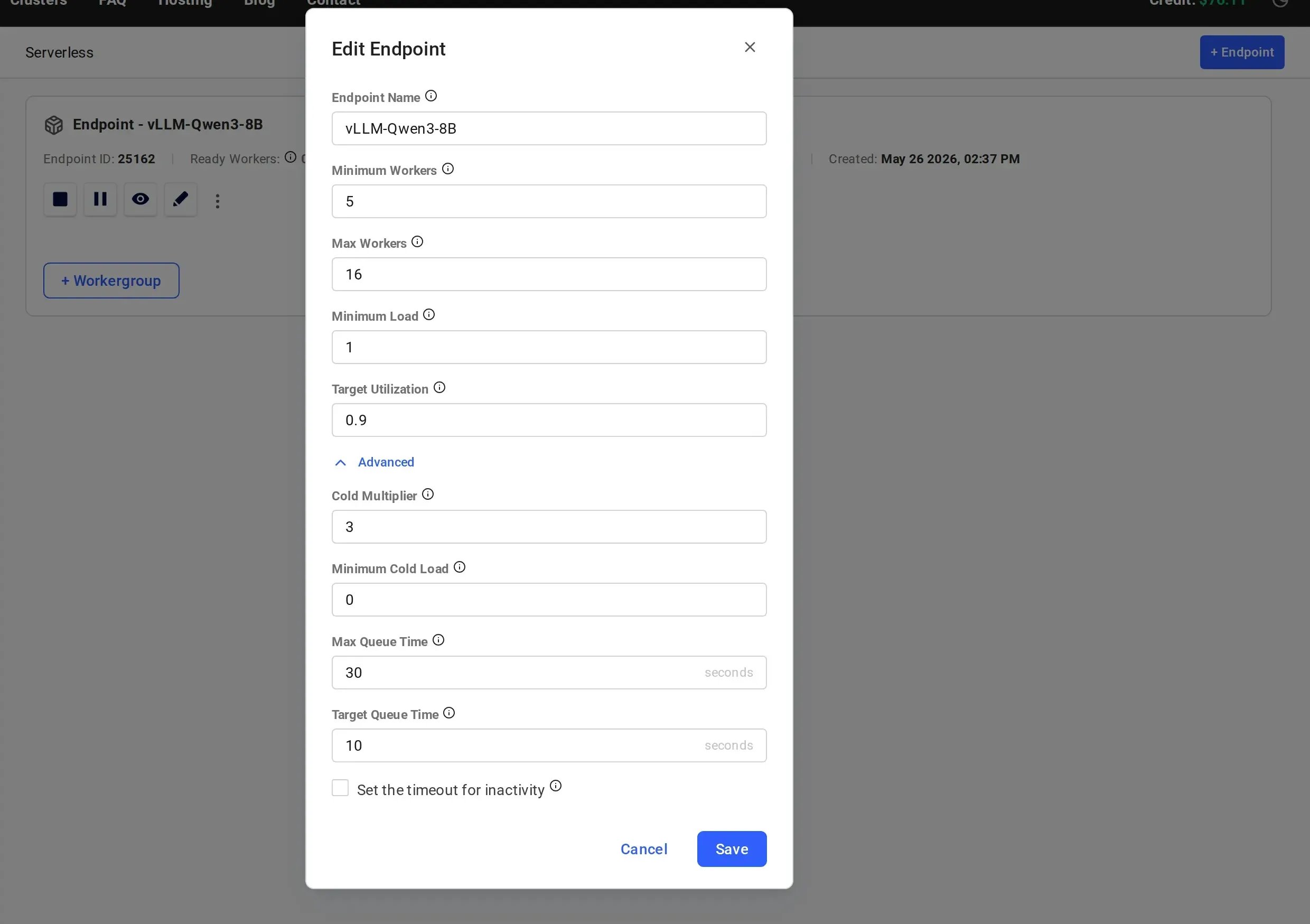
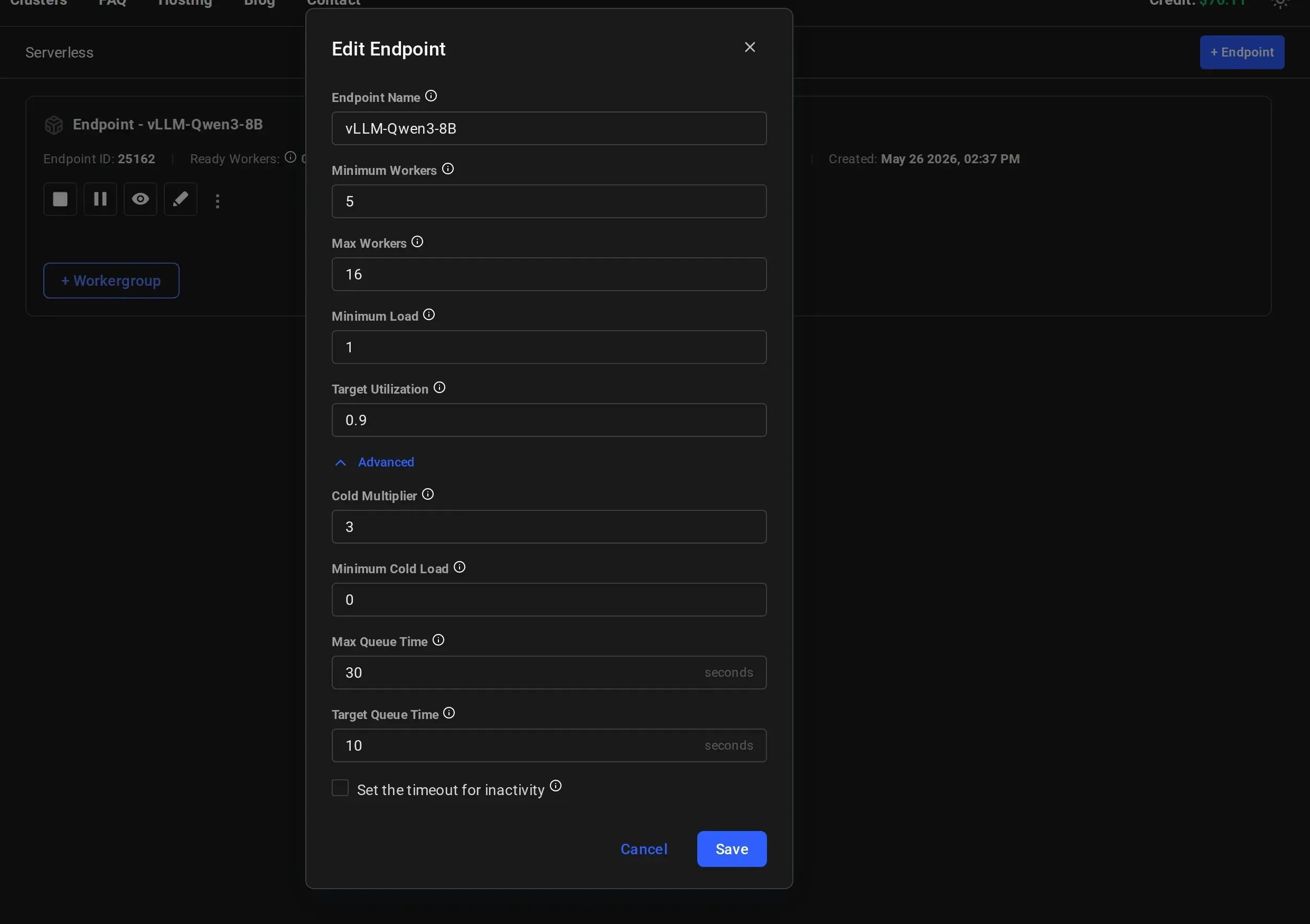
Optionally, click “Advanced” to expand additional scaling parameters. These all have sensible defaults, so you can leave them as-is and continue: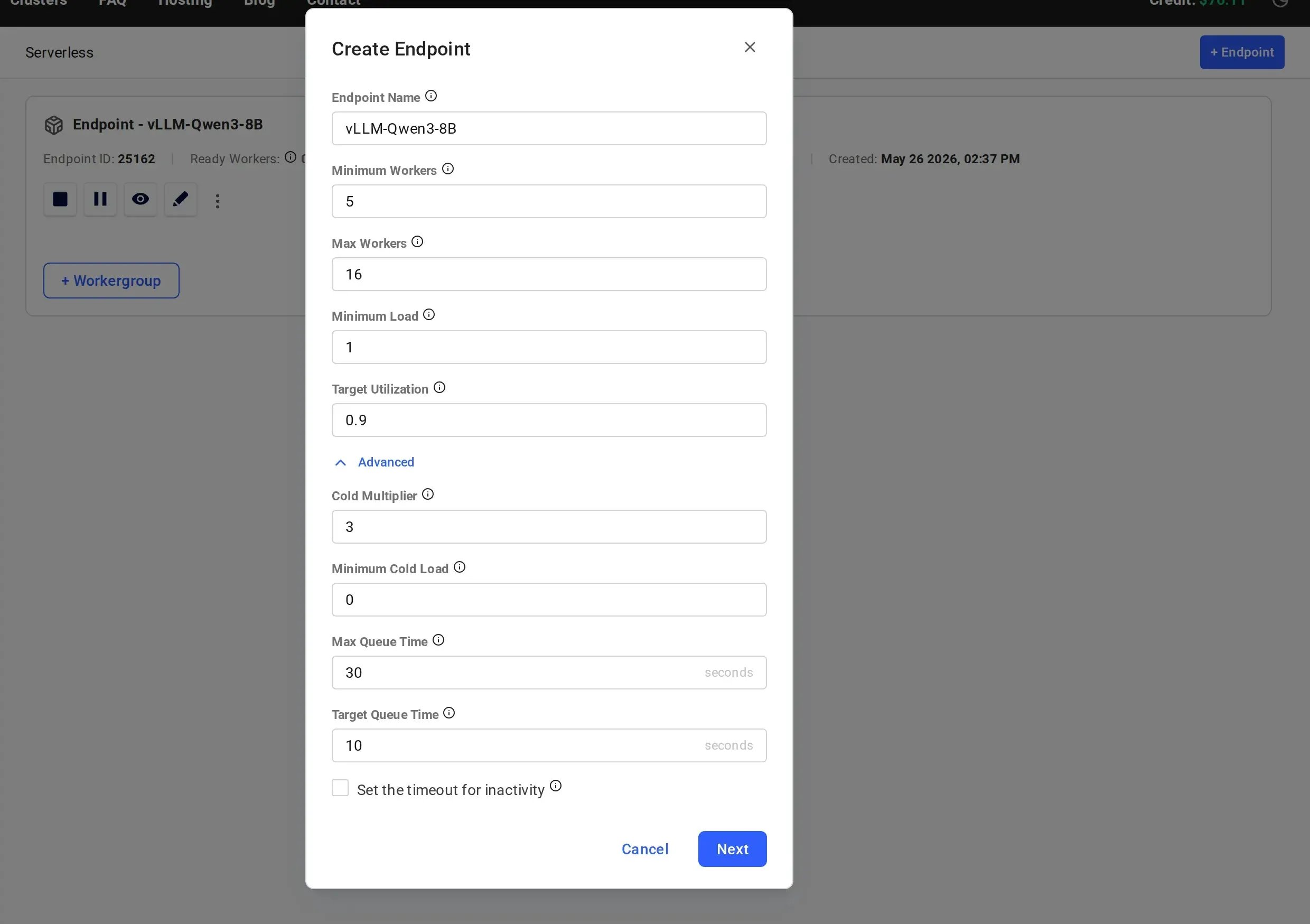
3
Select a Template
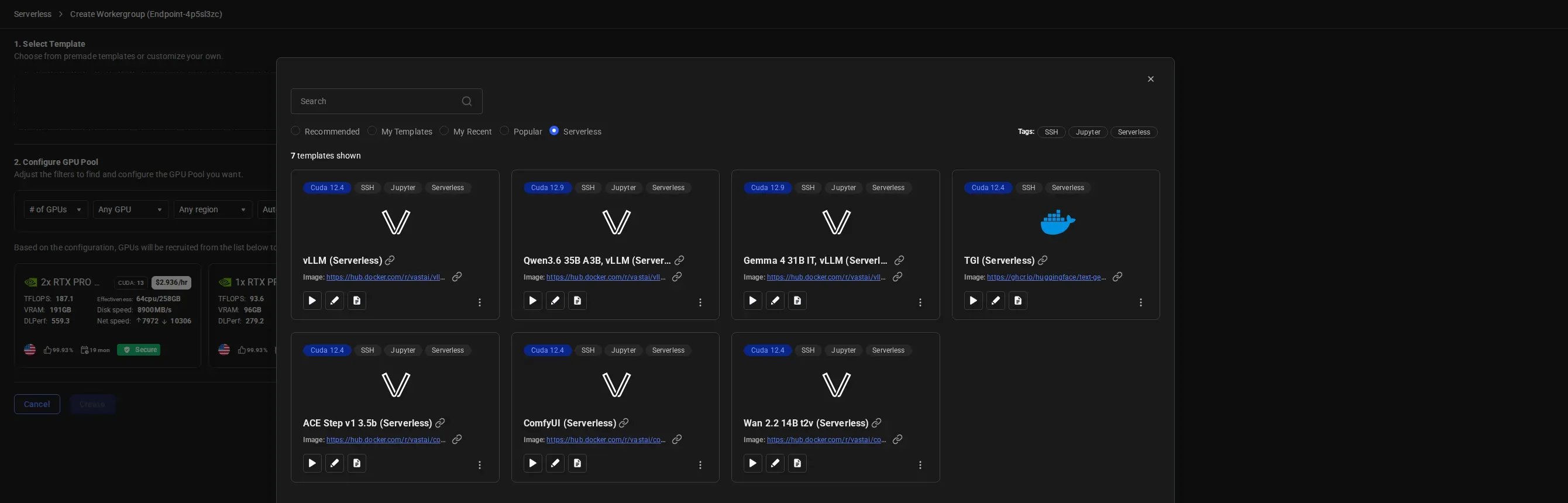
On the Create Workergroup page, start by selecting a template for your workers.Click “Select Template” and choose from the available pre-built templates. For LLM inference, select vLLM (Serverless), which comes pre-configured with: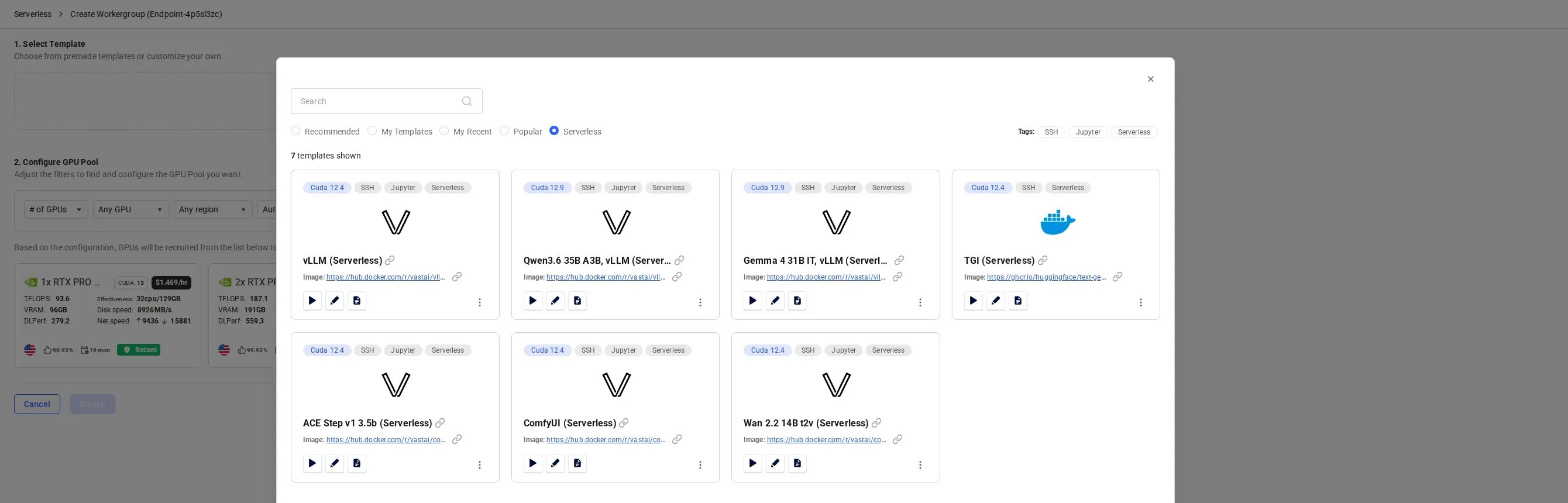
- Model: Qwen/Qwen3-8B (8 billion parameter LLM)
- Framework: vLLM for high-performance inference
- API: OpenAI-compatible endpoints
4
Select GPU Instances
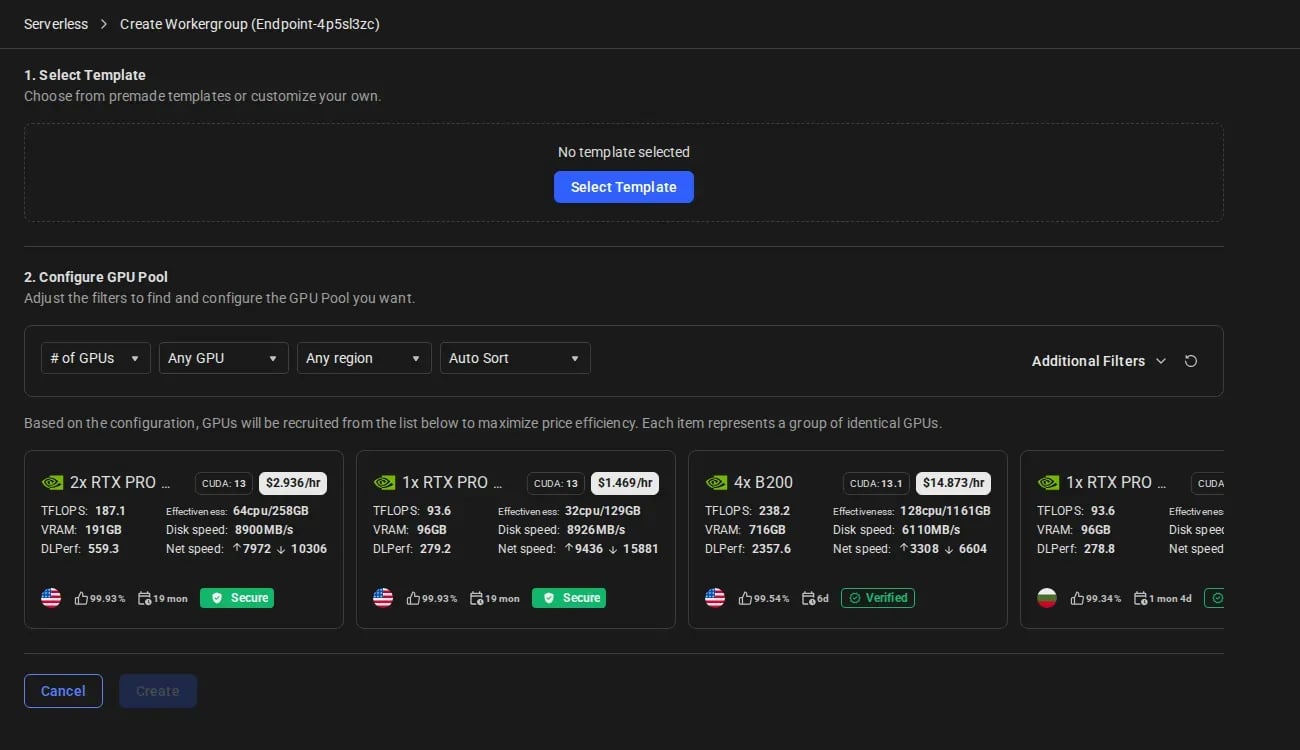
After selecting a template, choose the GPU instances for your workergroup.Use the filters to narrow by GPU type, quantity, region, and sort order. Each instance card shows specs including TFLOPS, VRAM, efficiency, disk speed, and pricing.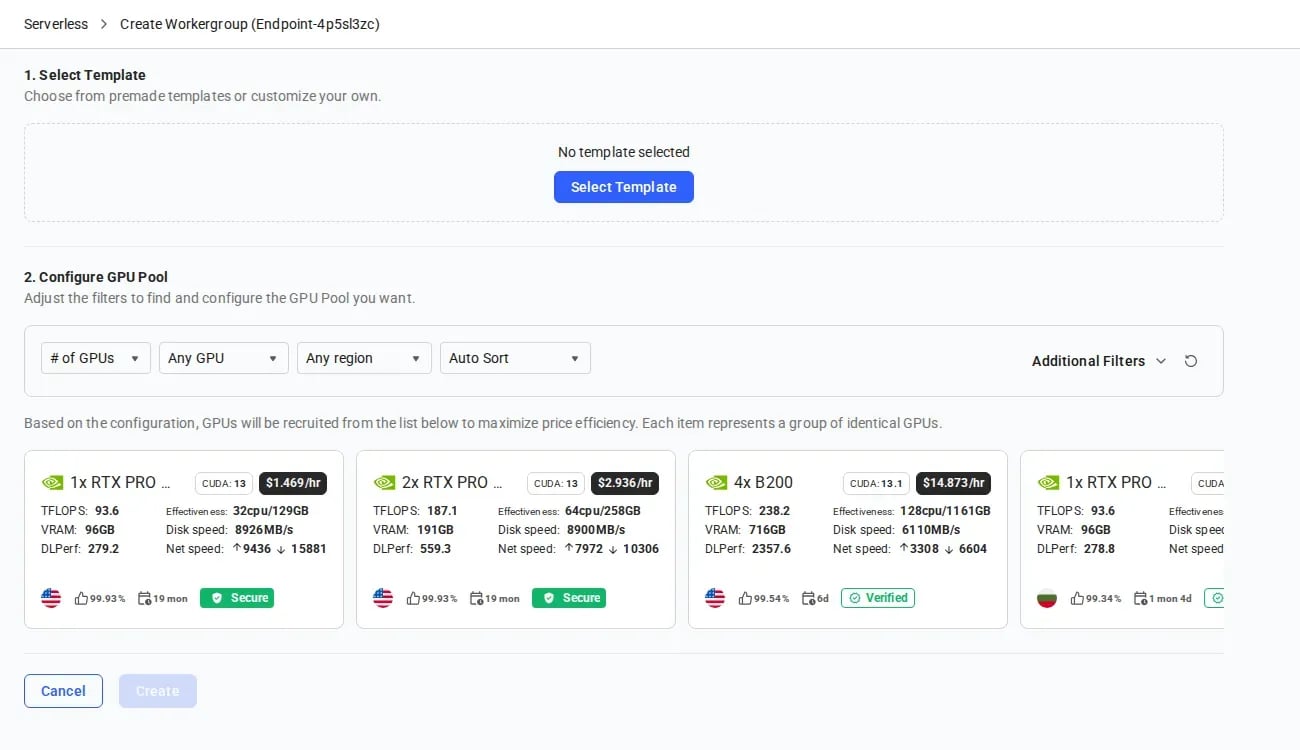
5
Wait for Workers to Initialize
Your serverless infrastructure is now being provisioned. This process takes time as workers need to: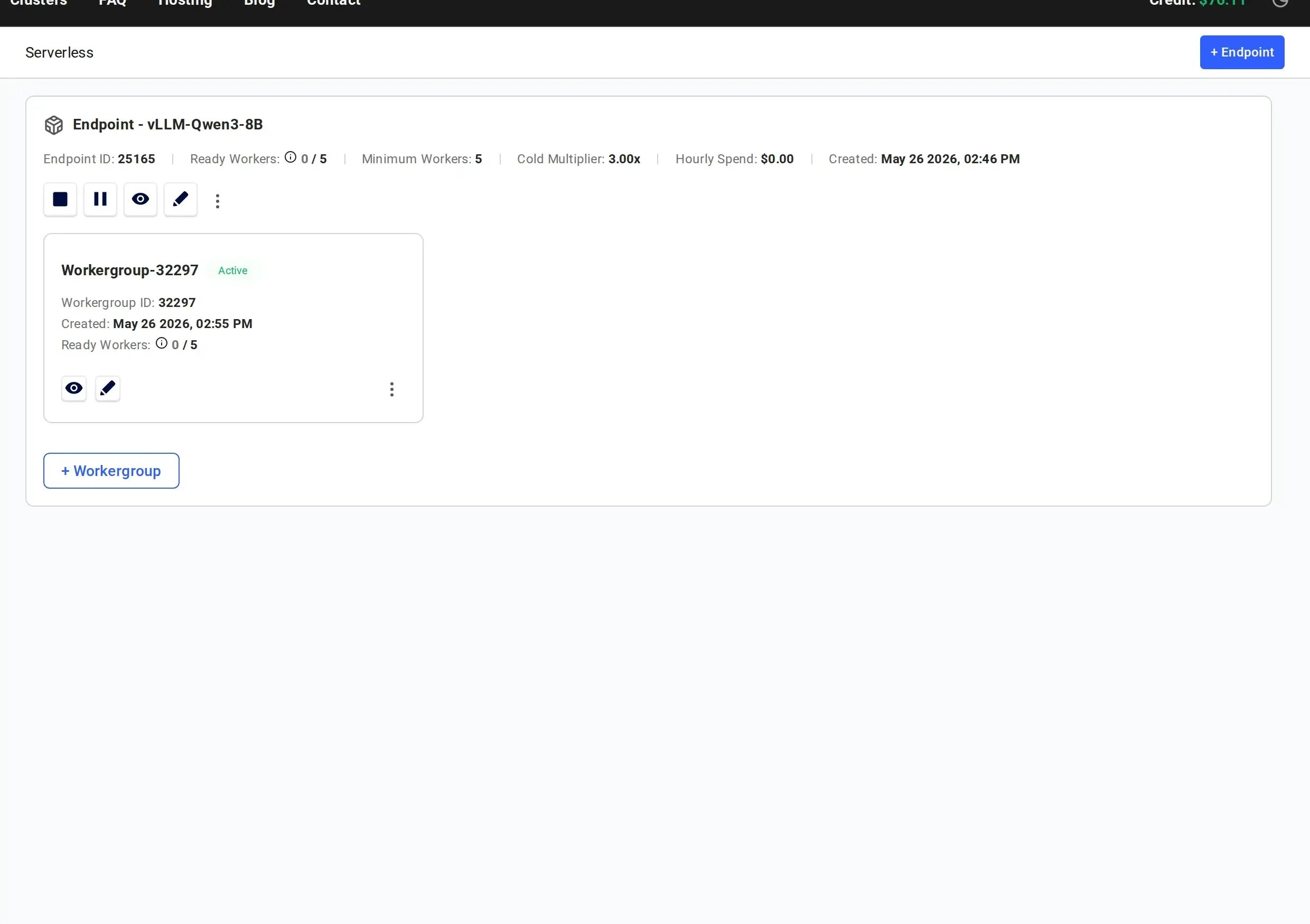
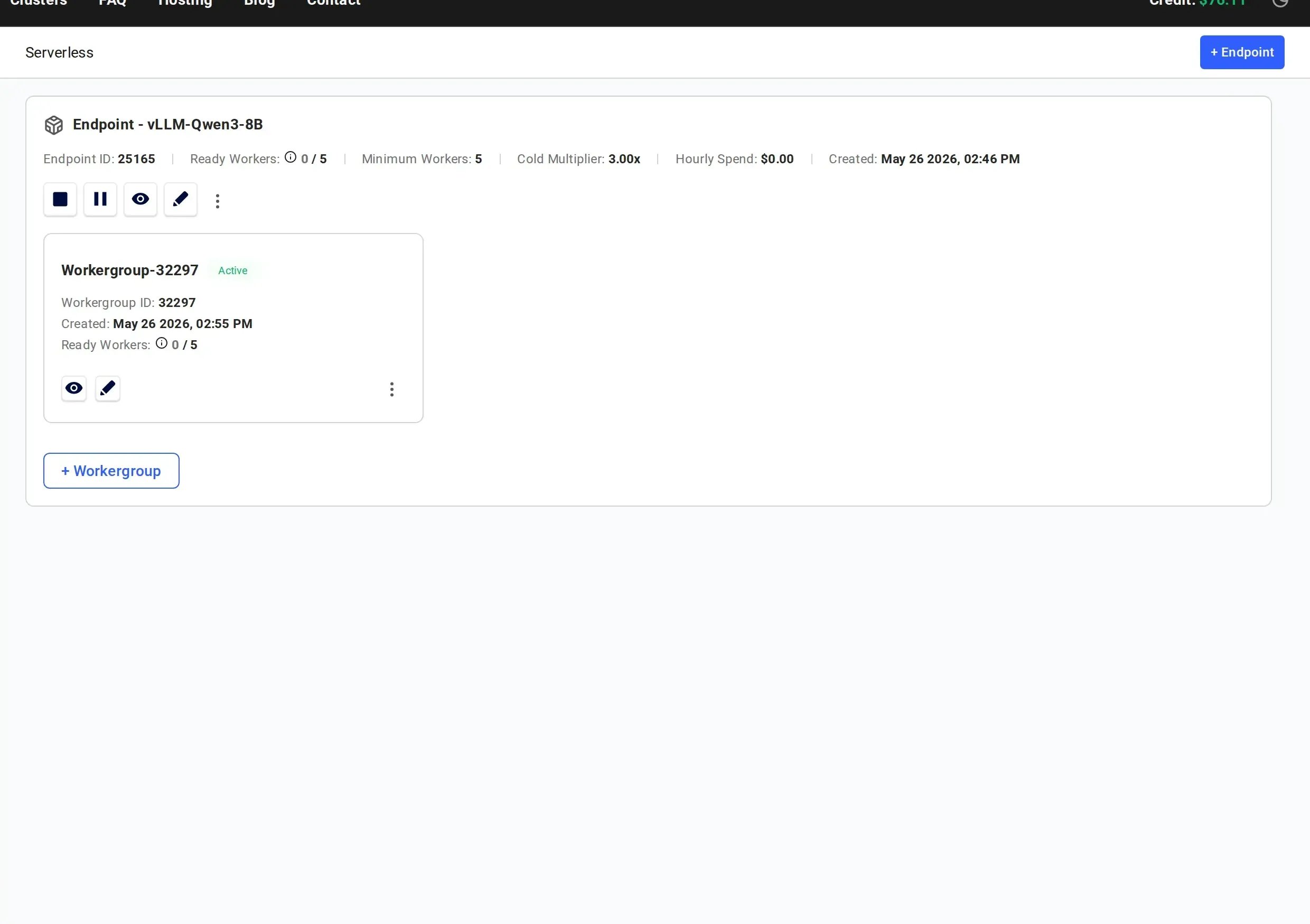
- Start up the GPU instances
- Download the model (8GB for Qwen3-8B)
- Load the model into GPU memory
- Complete health checks
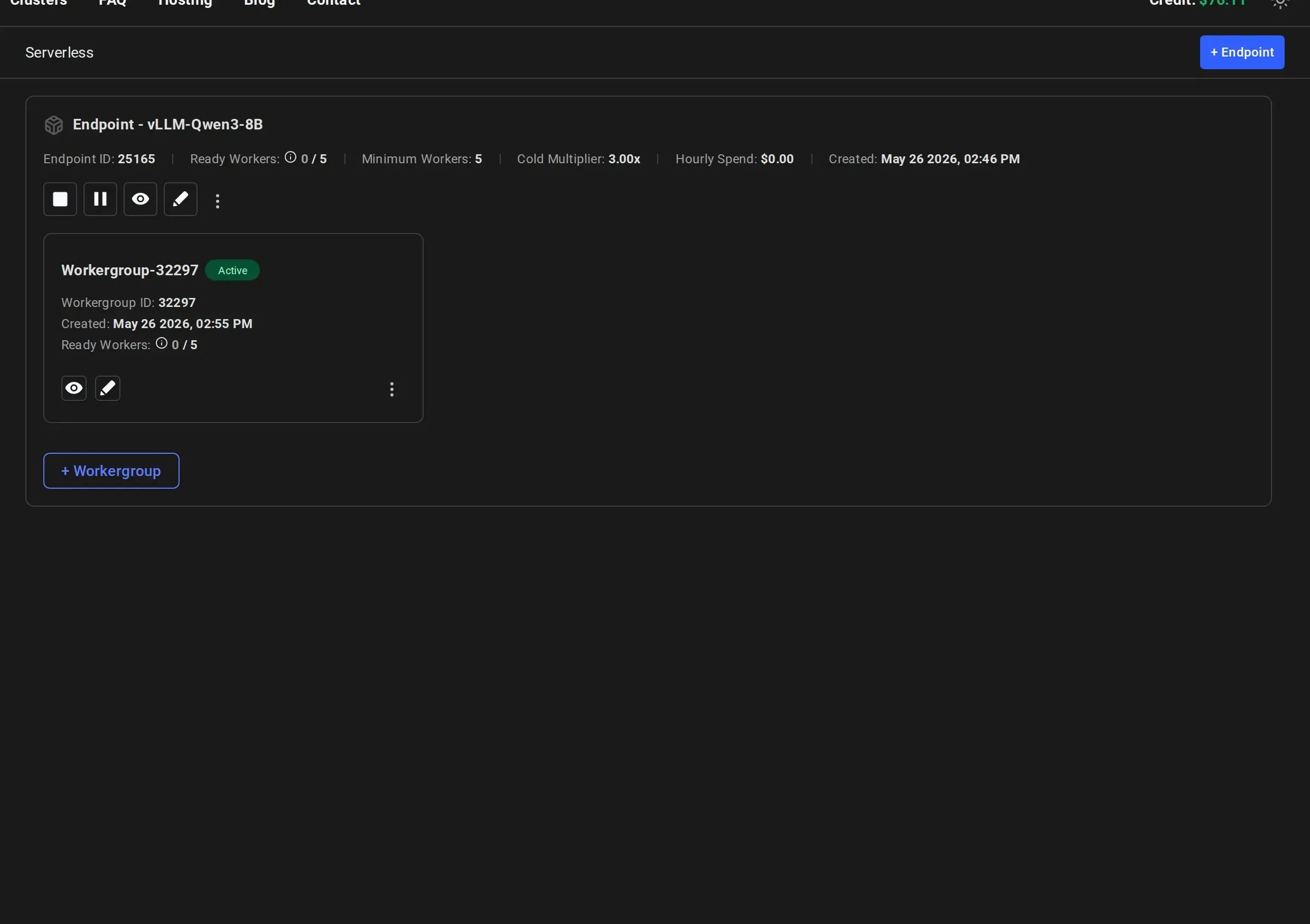
- Stopped: Worker has the model loaded and is ready to activate on-demand (cold worker)
- Loading: Worker is starting up and loading the model into GPU memory
- Ready: Worker is active and ready to handle requests
- Click on the “eye” icon to view the logs for a worker
- Logs show model download progress, loading status, and any startup errors
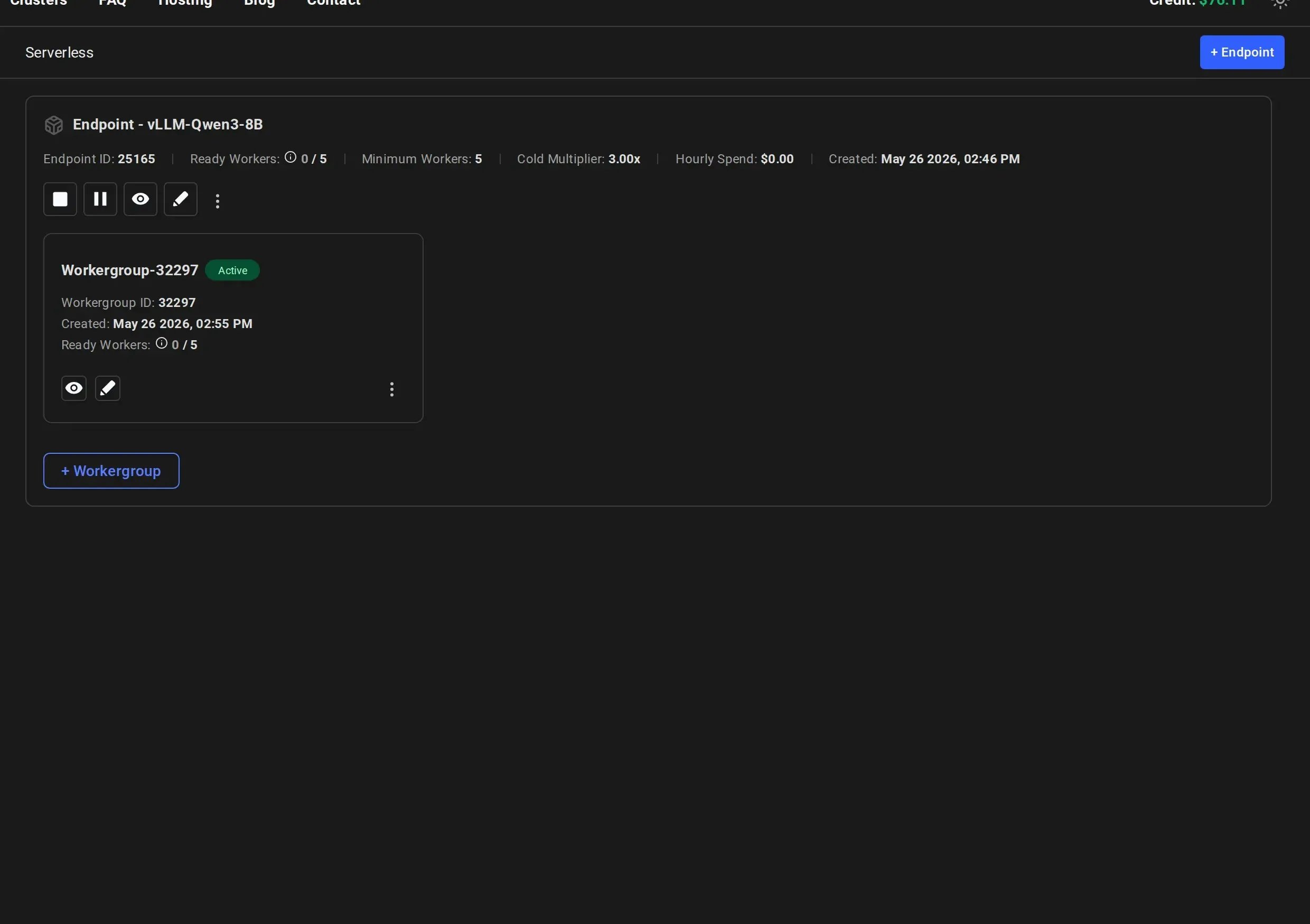
The SDK automatically holds and retries requests until workers are ready. However, for best performance, wait for at least one worker to show “Ready” or “Stopped” status before making your first call.
Edit an Existing Endpoint
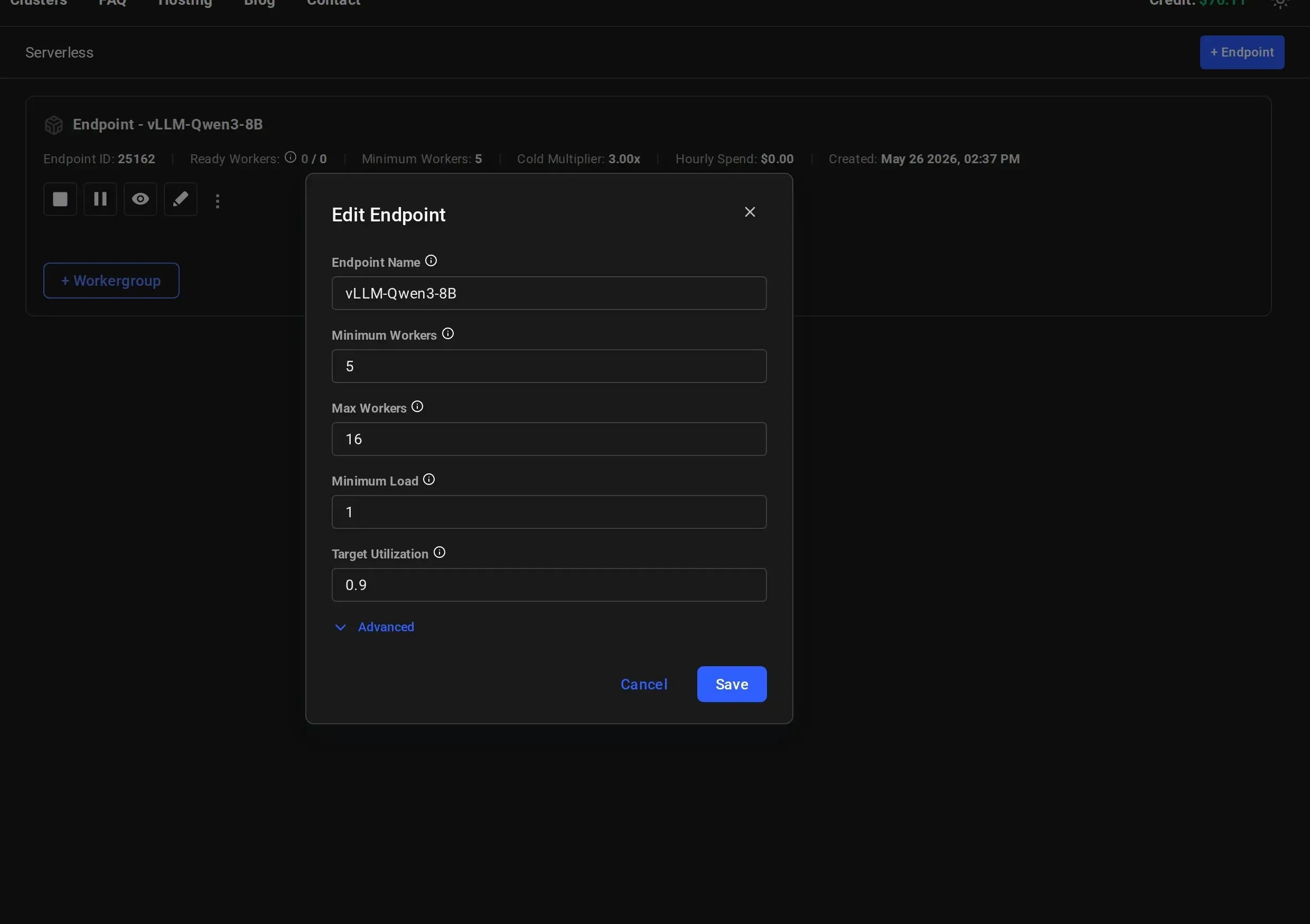
To modify parameters on a live endpoint, click the pencil icon on the endpoint card in the Serverless Dashboard. The Edit Endpoint dialog shows the same parameters as creation. Changes take effect immediately and the serverless engine will work to match the new targets.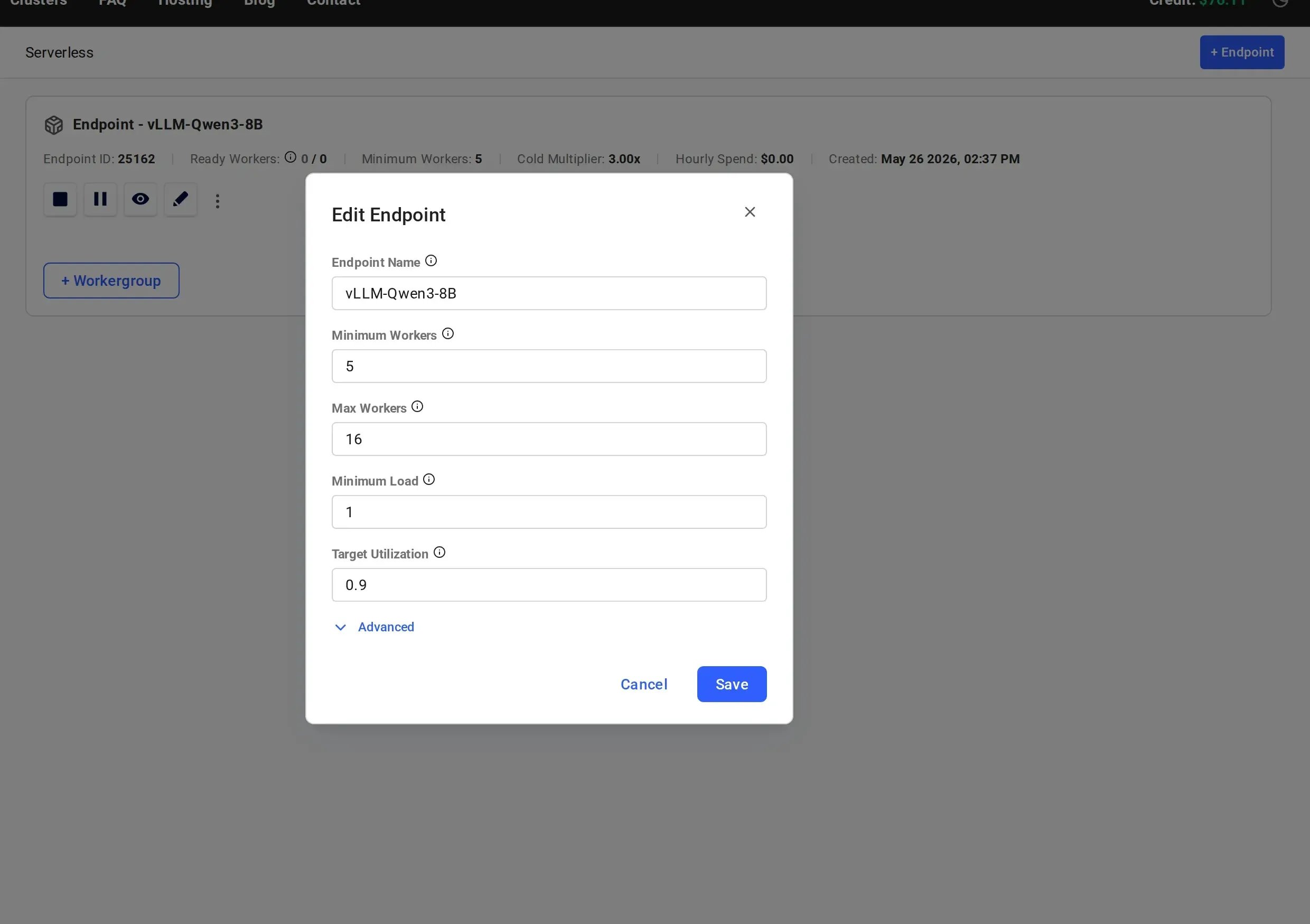
Next Steps
- Endpoint Parameters for a deep dive into what each parameter controls
- Managing Scale for tuning your endpoint for different load scenarios
- Workergroup Parameters for configuring GPU instance settings