

Run and Fine-Tune AI Models with Unsloth Studio on Vast.ai
Unsloth Studio is an open-source, no-code web UI for running and training over 500 open-source AI models, including text LLMs, vision models, text-to-speech, and embedding models. Search and run any model from Hugging Face, chat with tool calling and code execution, and fine-tune with QLoRA or LoRA (parameter-efficient training methods that reduce memory usage) using 2x faster training and 70% less VRAM than standard approaches. This guide walks through launching Unsloth Studio on a Vast.ai GPU instance, running a model for inference, and fine-tuning with a custom dataset, all from the Studio UI.Prerequisites
- A Vast.ai account with credits
- A web browser
- (Optional) A Hugging Face account with an access token for gated models (Llama, Gemma, Mistral) or uploading fine-tuned models
Hardware Requirements
GPU requirements vary by workload. Running quantized models for inference requires less VRAM than training.Inference
GGUF models (a compressed format optimized for inference) run efficiently on modest hardware. A 7B model at Q4 quantization needs roughly 4-6 GB VRAM. A 70B model at Q4 needs roughly 35-40 GB.Training
Training requires more VRAM. QLoRA (4-bit) is the most efficient training method:
These are minimum VRAM requirements from Unsloth’s documentation. Actual usage may be higher depending on batch size and context length.
Unsloth requires NVIDIA GPUs with compute capability 7.0 or higher (RTX 20-series and above) and CUDA 12.4+.
Launching the Unsloth Template
Open the pre-configured Unsloth template on Vast.ai. This link takes you to the instance search with the template already selected: Click here to open the Unsloth Studio template on Vast.ai The template ships with Qwen3.5-4B GGUF pre-cached for immediate inference. In this guide, we’ll also download Qwen3.5-9B for model comparison and fine-tune Qwen3.5-2B with QLoRA, all of which fit comfortably on a single RTX 4090 (24 GB). On the search results page:- Filter by GPU, for the models in this guide, select a GPU with at least 24 GB VRAM (e.g., RTX 4090). For larger models, refer to the hardware requirements table above.
- Sort by price, click the ”$/hr” column to find the cheapest option.
- Check reliability, look for instances with reliability scores above 95%.
- Rent, click the Rent button on your chosen instance.
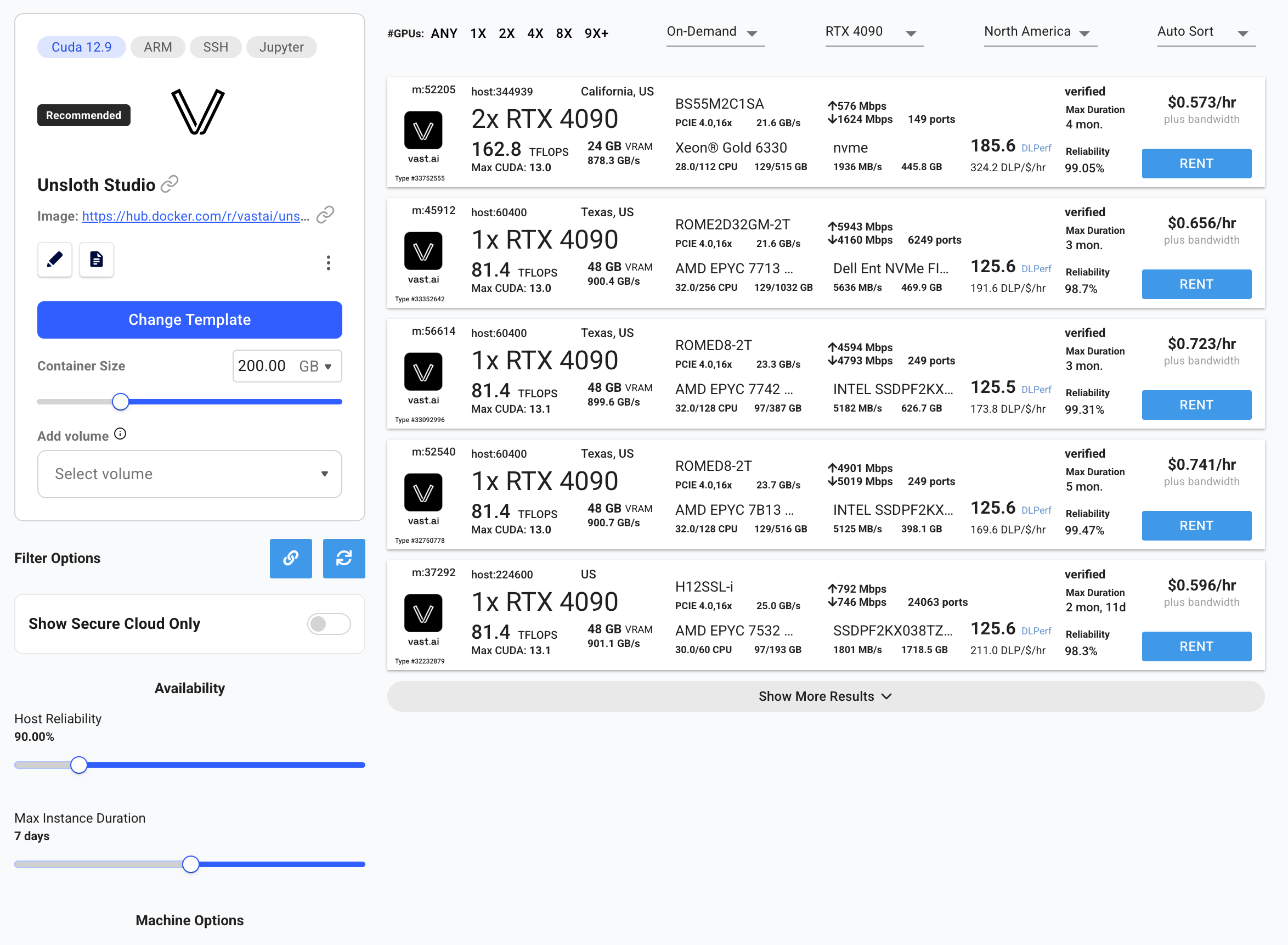
Vast.ai instance search with the Unsloth Studio template selected
Connecting to Unsloth Studio
Once the instance shows Running status, click the Open button on your instance.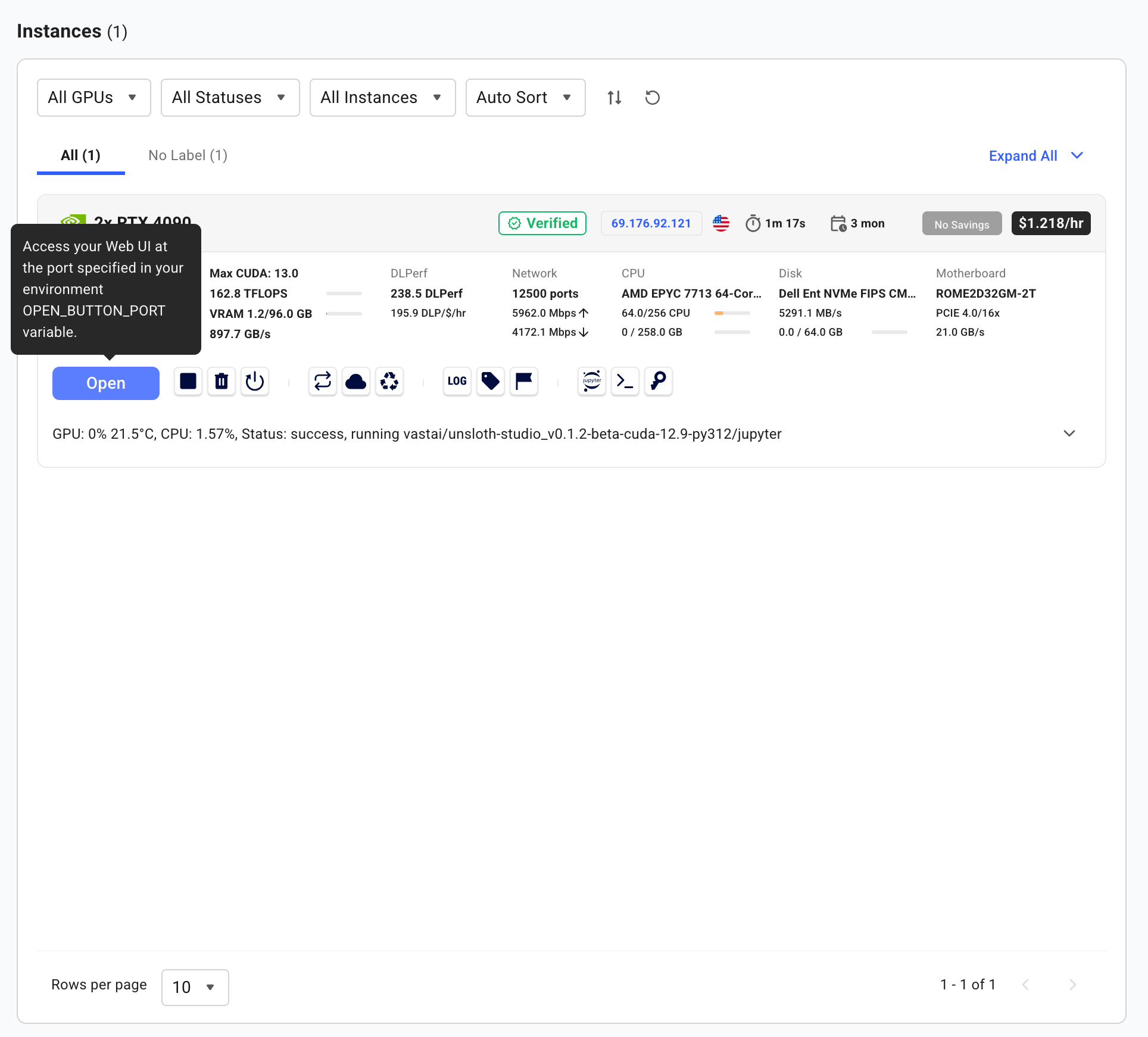
Click Open to access the instance applications portal
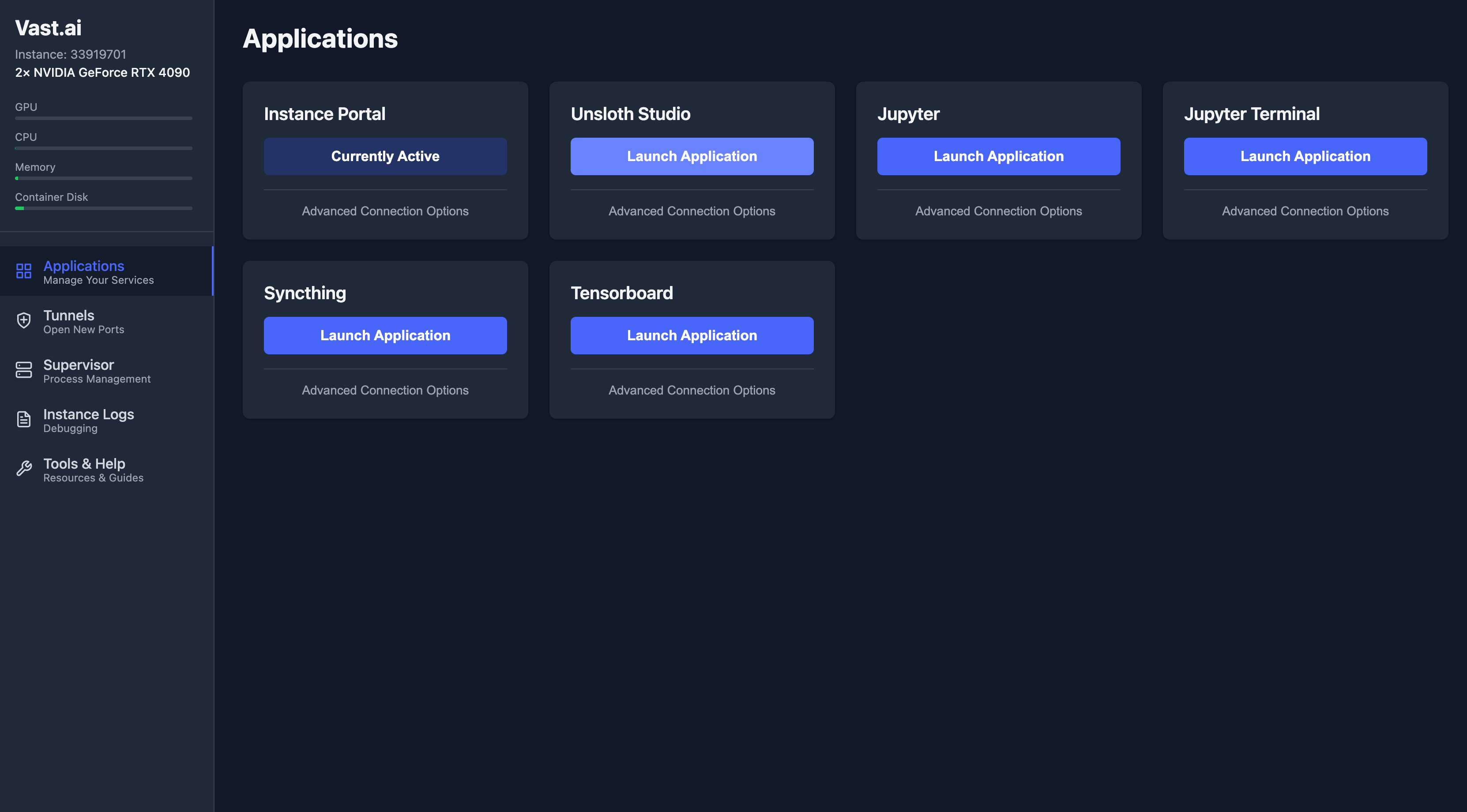
Applications portal, select Unsloth Studio to launch the web UI
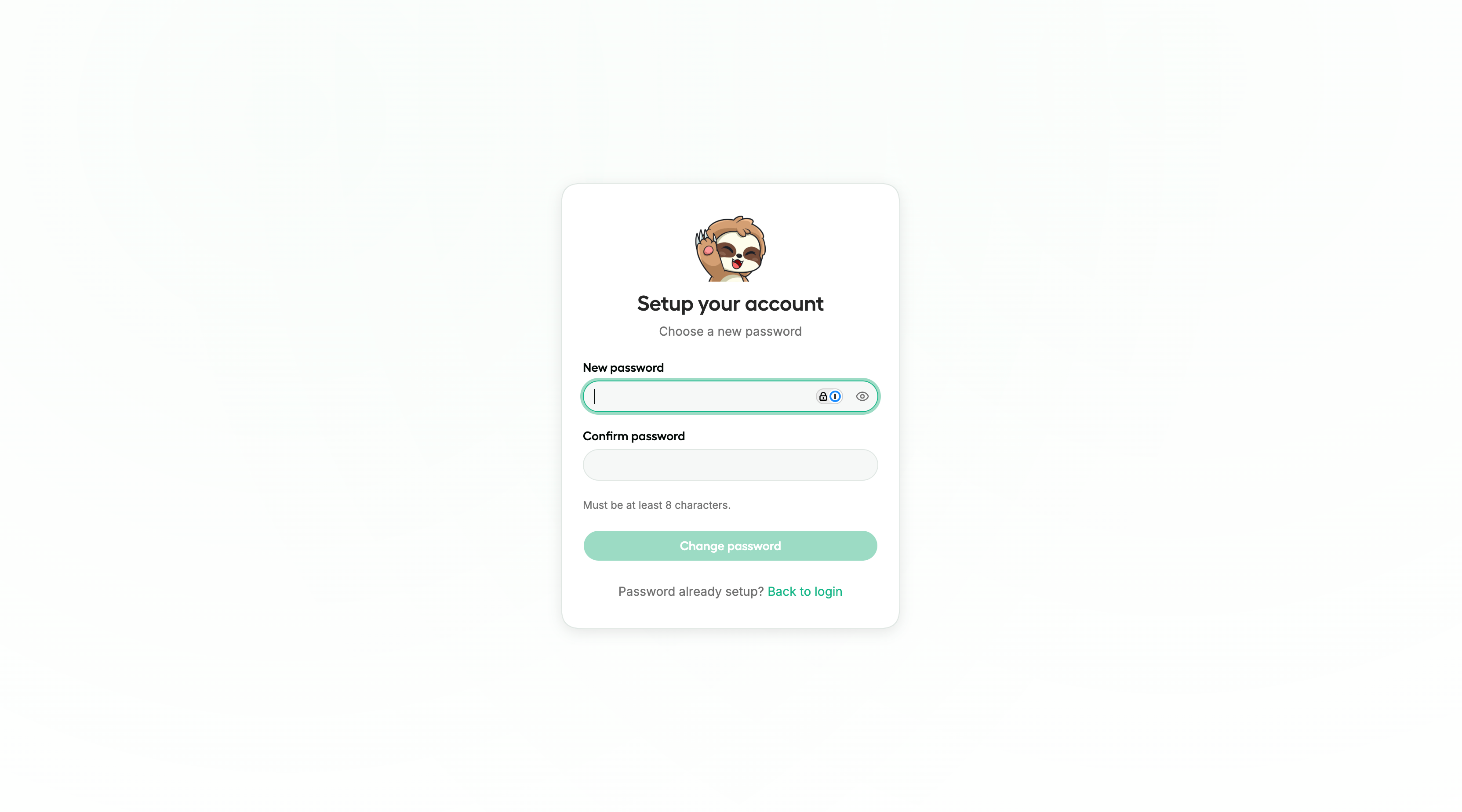
Unsloth Studio account setup on first launch
Running Models
With Studio open, you can immediately start running models.Download a Model
The template comes with Qwen3.5-4B GGUF pre-cached and ready to run, no download wait. Click the model selector to load it, or search Hugging Face for a different model. Studio supports models across four categories:
For gated models (Llama, Gemma), enter your Hugging Face access token when prompted. Studio also auto-detects models already cached on the instance.
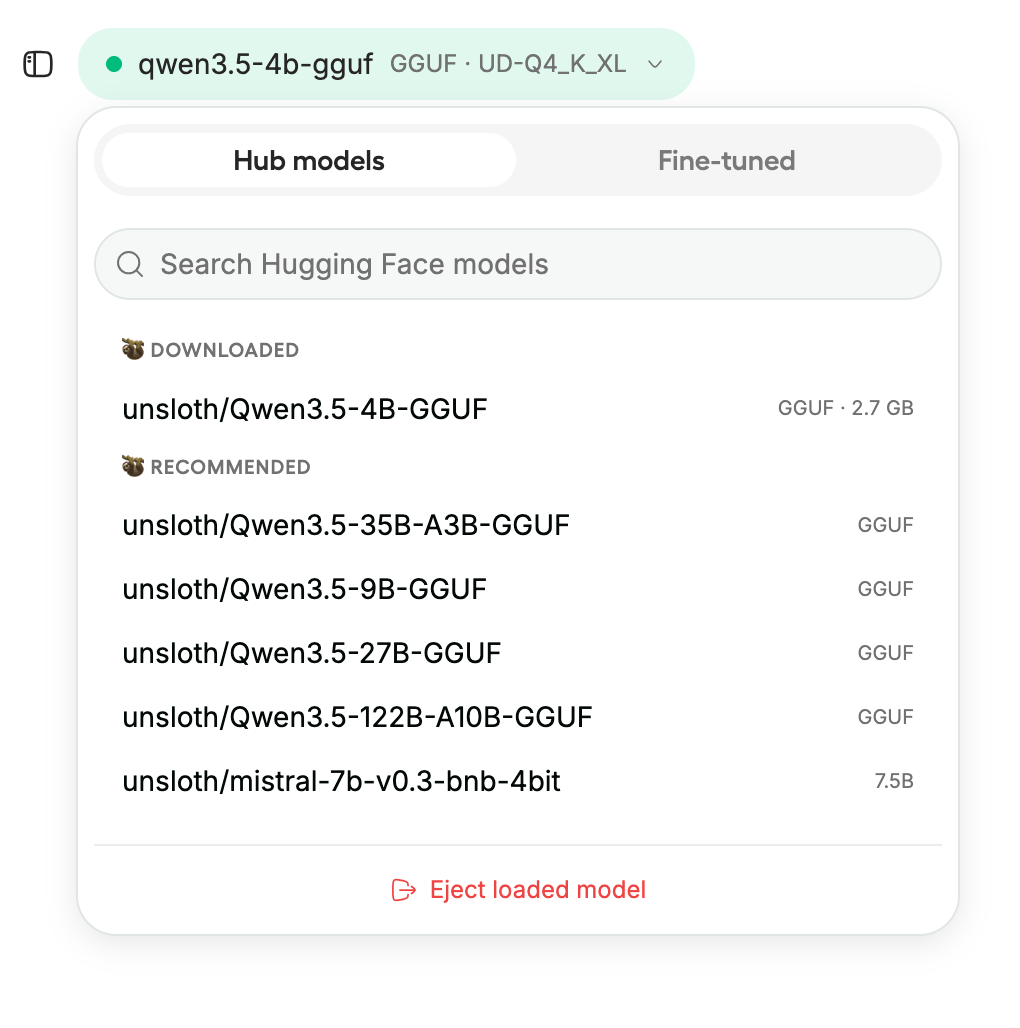
Model selector showing downloaded and recommended models
GGUF models work for inference only, they cannot be used for training. If you plan to fine-tune, download the safetensor version.
Chat
Once a model loads, use the built-in chat interface to interact with it. Studio includes:- Tool calling, the model can call tools and self-heal when tool calls fail
- Code execution, runs Python and Bash in a sandboxed environment
- Web search, models can search the web and cite sources
- Auto-tuned parameters, Studio adjusts temperature, top-p, and top-k automatically
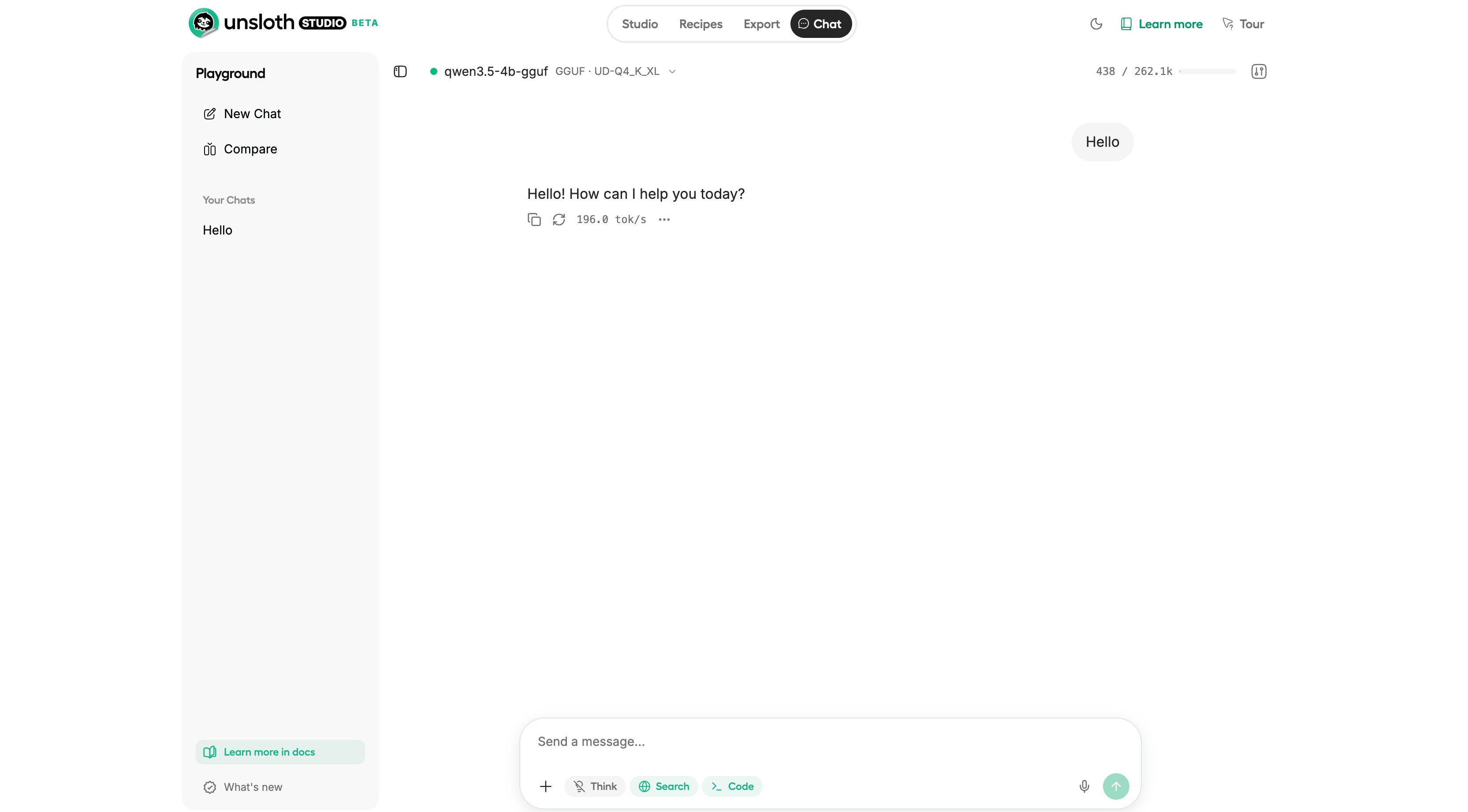
Chat interface running Qwen3.5-4B GGUF at 196 tokens per second
Model Arena
Compare two models side by side using Model Arena. This sends the same prompt to both models simultaneously, useful for comparing a base model against a fine-tuned version, or evaluating two different models for your use case.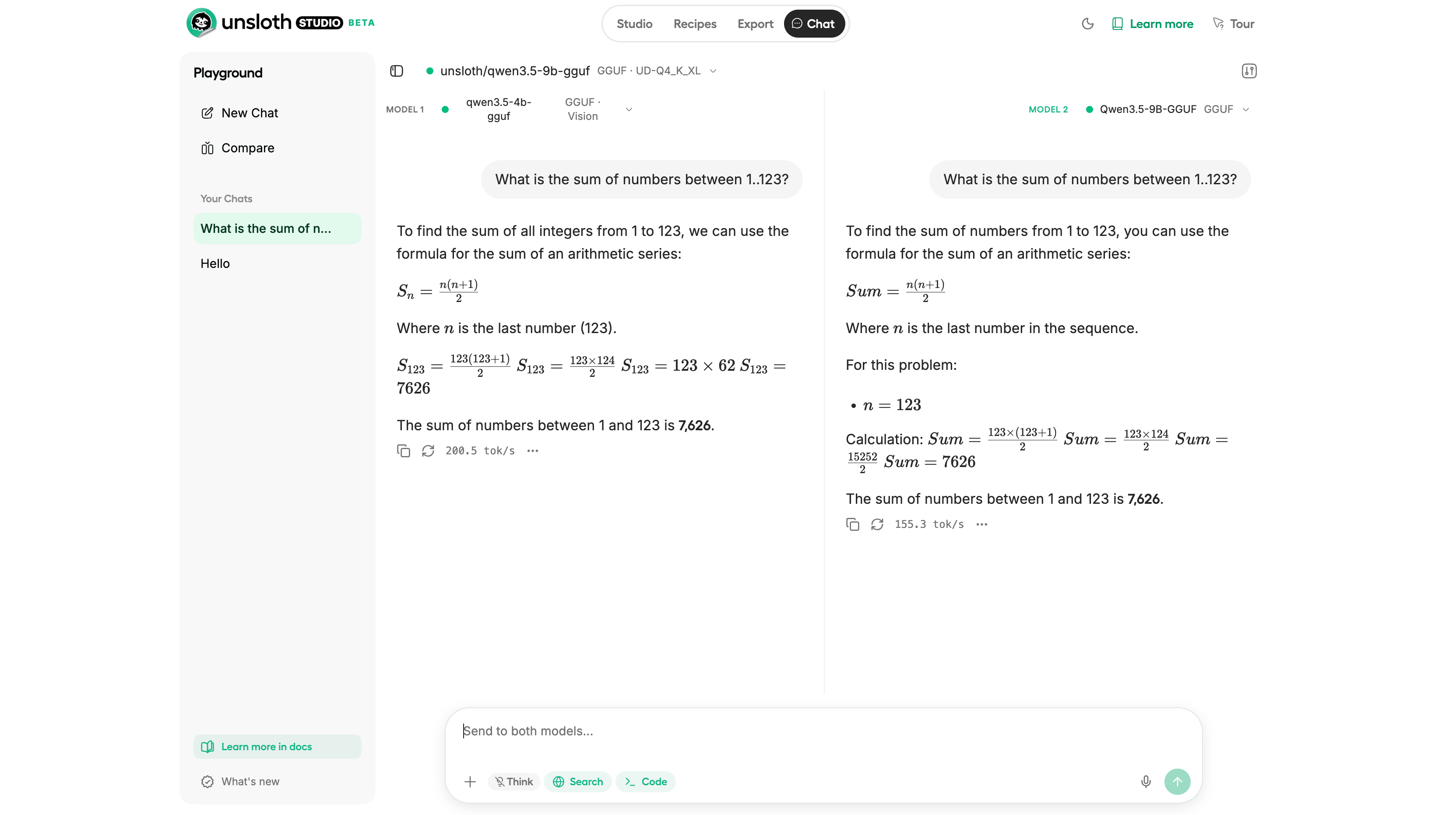
Model Arena comparing Qwen3.5-4B and Qwen3.5-9B side by side on the same prompt
Fine-Tuning a Model
Studio supports QLoRA (4-bit), LoRA (16-bit), and full fine-tuning directly from the UI. The following sections cover preparing data, configuring training parameters, running the job, and evaluating results.Prepare Training Data
Studio accepts training data in JSONL, JSON, CSV, Parquet, PDF, DOCX, and TXT formats. Upload your file through the Studio UI. Studio auto-detects the conversation format:- ChatML, OpenAI-style
messagesarray withroleandcontentfields - Alpaca,
instruction,input,outputfields - ShareGPT,
conversationsarray withfromandvaluefields
JSON
Data Recipes
If you have raw documents but no structured training data, use Data Recipes to transform them. Data Recipes provide a visual node-based workflow for converting PDFs, CSVs, and text files into training datasets. Upload your documents, build a transformation pipeline with drag-and-drop blocks, preview a sample, and generate the full dataset.Configure Training
Select your training method:
Studio provides sensible defaults for training parameters. Key settings to be aware of:
- Epochs: 1-3 (start with 1)
- Learning rate: 2e-4
- Batch size: 2-4 (reduce to 1 if you hit out-of-memory errors)
- Context length: 2048 (increase for longer documents, at the cost of more VRAM)
- LoRA rank: 16 (higher values give more capacity but use more VRAM)
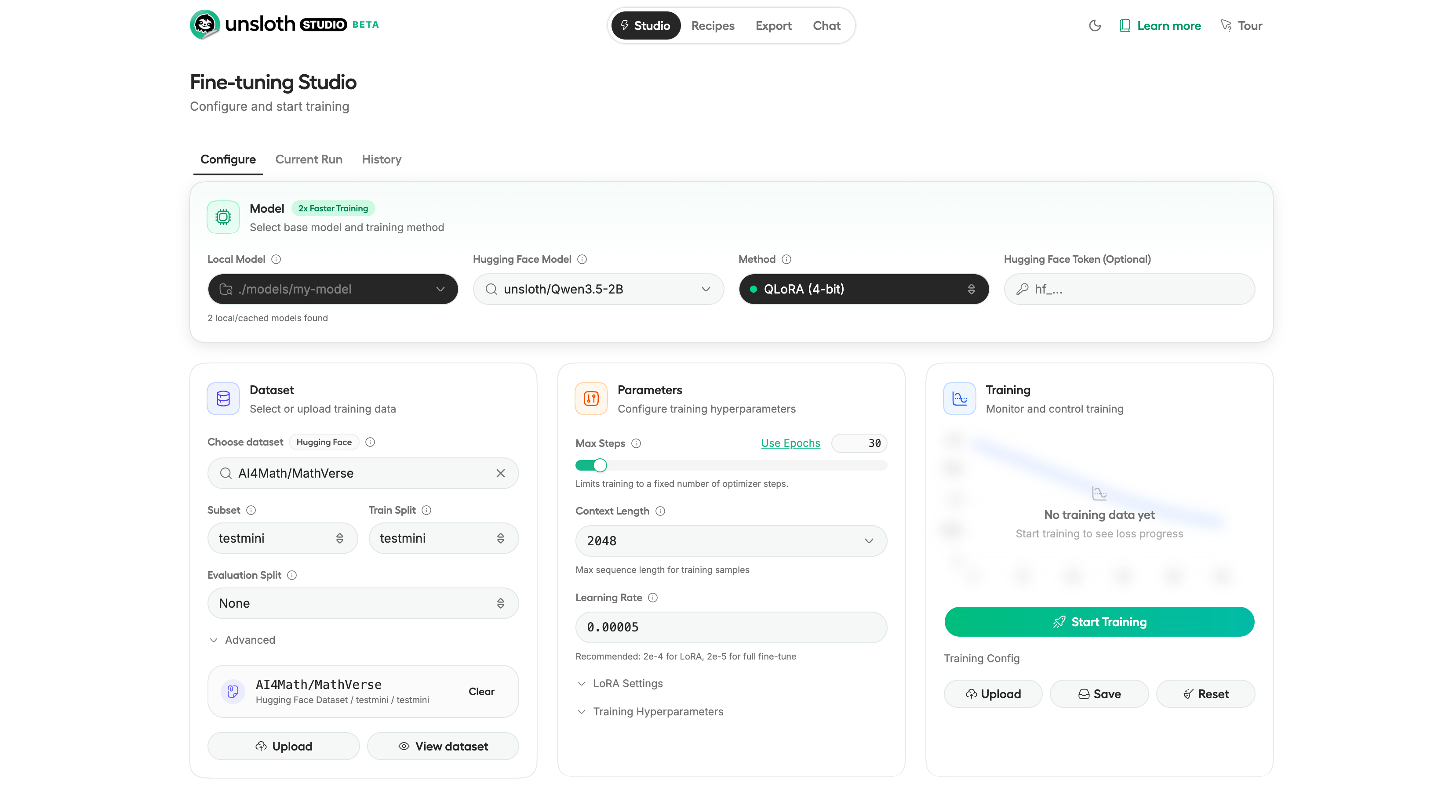
Fine-tuning Studio configuration with dataset, parameters, and training controls
Train
Click Start Training to begin. Studio shows real-time monitoring including loss curves, GPU utilization, VRAM usage, and estimated time remaining. The loss curve should trend downward over the course of training. Training time depends on model size, dataset size, and GPU. A small model like Qwen3.5-2B can complete a short training run in under 3 minutes on an RTX 4090.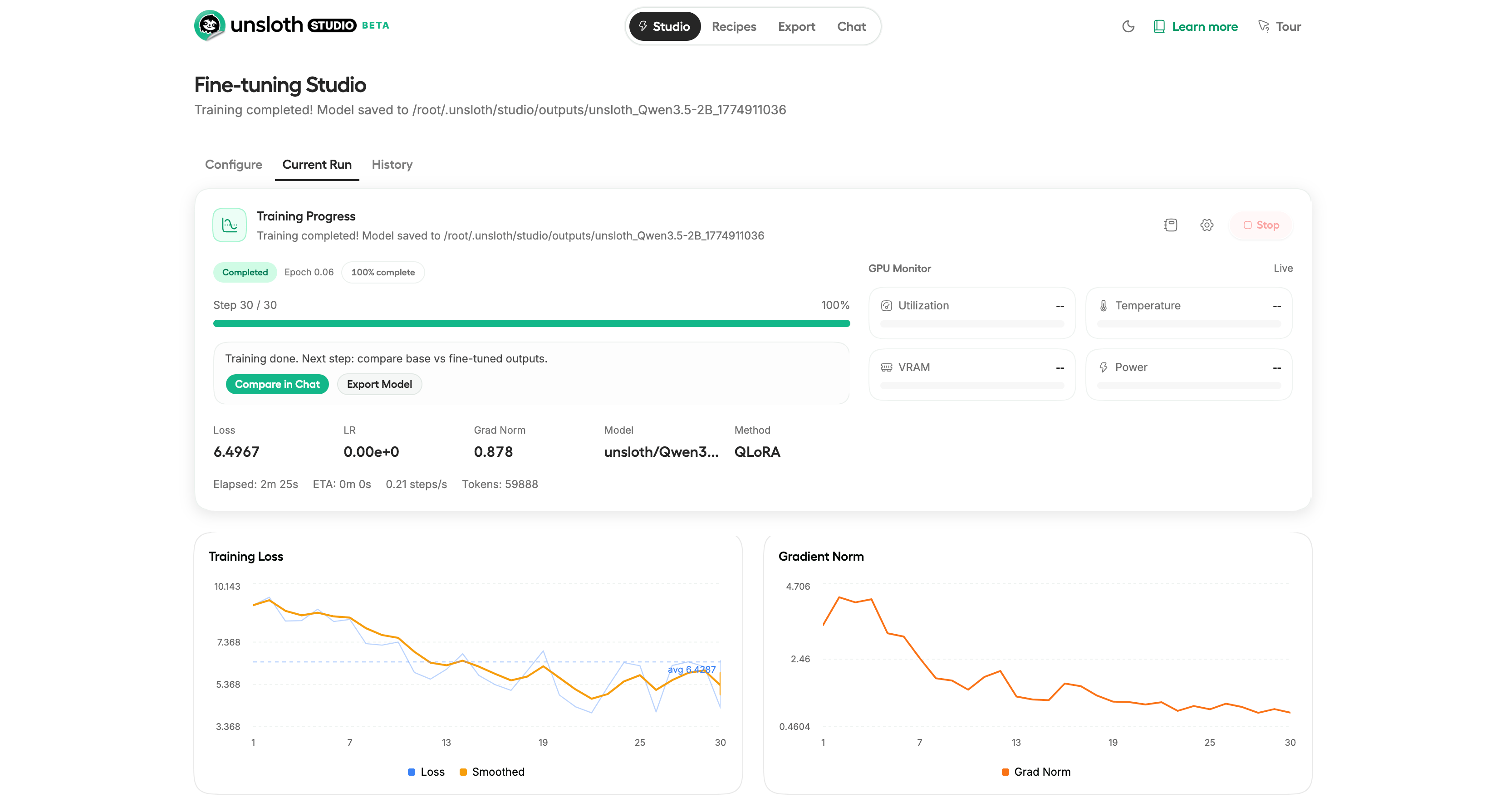
Completed training run with loss curve, gradient norm, and GPU monitoring
Evaluate
After training, test the fine-tuned model in the chat interface. Use Model Arena to compare responses between the base model and your fine-tuned version side by side. If the fine-tuned model does not meet your quality expectations, consider adding more training data, increasing the number of epochs, raising the LoRA rank, or starting from a larger base model.Exporting Your Model
After training, export the fine-tuned model in a format that matches your deployment target. Click the Export tab in the top navigation to open the export configuration.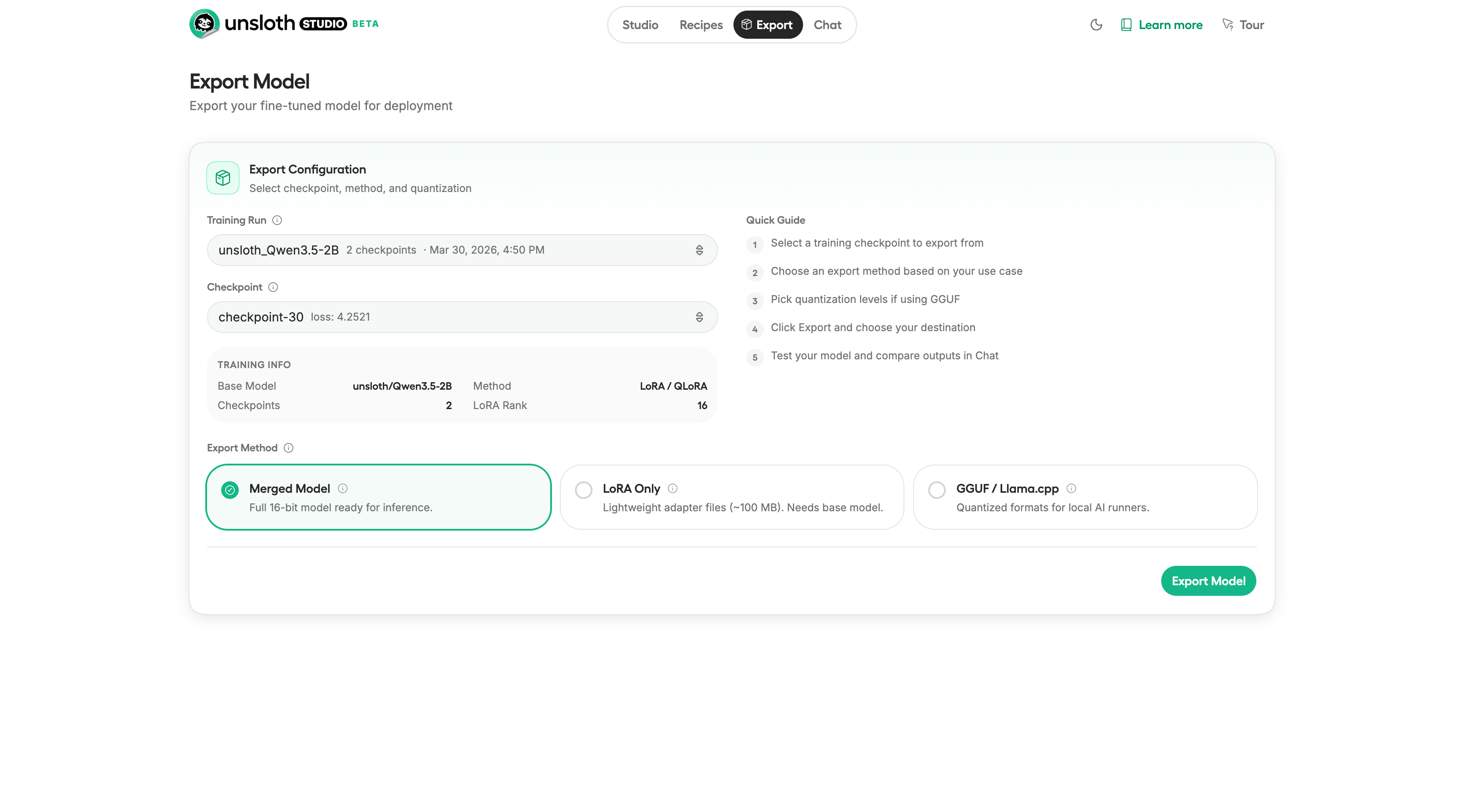
Export configuration showing checkpoint selection and export method options
For local use, GGUF with Q4_K_M quantization balances quality and file size. For serving on a GPU, export as a merged model and deploy with vLLM.
Cleanup
When you are done:- Download your model, export and download your files before destroying the instance.
- Destroy the instance, go to your Instances page and click Destroy to stop all charges.
You can also Stop an instance to pause compute charges while preserving your data. Stopped instances still incur storage charges. Use Destroy to stop all charges entirely.
Next Steps
- Scale up: Try a 13B or 27B model with QLoRA on a 48 GB GPU for stronger capabilities
- Reinforcement learning: Studio supports GRPO for alignment training with significantly less VRAM than standard approaches
- Deploy your model: Export to GGUF and run with Ollama, or serve with vLLM on a Vast.ai instance
- Vision models: Fine-tune multimodal models like Qwen2.5-VL and Llama 3.2 Vision for image understanding tasks
- Audio models: Run and fine-tune text-to-speech models like Orpheus-TTS